Tribes 2 Tweak Guide (Page 4/6)
Posted: May 12, 2001
Written by: Dustin "TimmyC" Jones
Tweaking - Graphics Settings (cont.)
Interior Textured Fog: This setting toggles fog effects inside buildings. If you are keen on fog, keep it
enabled, but otherwise, just disable it and gain some speed.
Vertex Lighting: Ticking this box enables vertex lighting in the game, which is only a tweak for the
speed hungry. Vertex lighting is a flat, dull type of lighting which, while fast, saps all atmosphere from the
game. Consider this a last resort.
Tweaking - Texture Settings
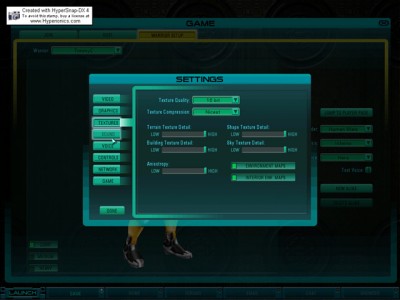
The next section we'll be visiting is Textures. So head on over there and take a gander at the
following:
Texture Quality: This setting determines the colour depth and overall quality of the game textures. If you
have a 64MB card (or a really fast 32 MB card), set this to 32bit, otherwise, 16bit will probably do fine.
Texture Compression: Unless your card doesn't support this feature, there is NO reason to not have it
enabled. There are two choices for you as well, fastest and nicest. This is about as obvious as it sounds. If
you have under 32MB on your video card or a low amount of ram, set this to fastest. If you have more than
what I just mentioned, set it to nicest and you'll alleviate some of the yucky effects of the compression.
Although I don't know for certain, I'm assuming the fastest/nicest settings are the DXT1 and DXT3 settings
which were discovered during the whole Quake III S3TC issue.
Terrain Texture Detail: By adjusting the slider bar, you can increase/decrease the filtering detail of the
textures on the terrain. Decreasing can save texture memory, but if you've got a 32MB card and texture
compression enabled, you're best to keep it at maximum and enjoy purdy textures.
Shape Texture Detail: By adjusting the slider bar, you can increase/decrease the filtering detail of the
textures of shapes in the game world. Decreasing can save texture memory, but if you've got a 32MB card
and texture compression enabled, you're best to keep it at maximum and enjoy purdy textures.
Building Texture Detail: By adjusting the slider bar, you can increase/decrease the filtering detail of the
textures of buildings. Decreasing can save texture memory, but if you've got a 32MB card and texture
compression enabled, blah blah blah...
Sky Texture Detail: By adjusting the slider bar, you can increase/decrease the filtering detail of the textures
of the sky. You know the rest. :)
Next Page