Mouse Tweak Guide (Page 1/3)
Updated: December 5, 1999
Written by: Dan "Tweak Monkey" Kennedy
Introduction
What the hell!? A mouse tweak guide? Sure, why not? Nearly every PC user, everywhere, uses a mouse or trackball (or some other related pointing device) almost constantly while at their PC. So... why not tweak it? Tweaking your mouse might help you with games, surfing the web, and just about everything else. Optimize your mouse's ability to do what it's designed to do - point and click!
Mouse Control Panel
These first (and beginner) mouse tweaks are accessible via the Control Panel. If you're a total newbie, you're in luck, because I can understand this and will therefore make this guide extremely easy to understand and follow.
Begin by accessing the Start menu. Choose Settings, then Control Panel. Open the Mouse applet. These options are pretty much self explanatory. Set the right/left handed option according to your preference, and set the double-click speed to about half-way between Slow and Fast. Test the setting on the graphic to the right. Tweak the setting to your liking. If you prefer to have a non-standard pointer, adjust this under the Pointers tab. I leave my pointer on the default setting. Now, click the Motion tab on the top. Here you can adjust the mouse speed and enable pointer trails if you want. If you have a very small space to work with or you run your desktop at a high resolution, you may want to increase the mouse speed slightly. I keep mine at 1/2 notch above the middle and I set my desktop to 1280x1024. Most people dislike pointer trails because they distract from mouse accuracy and really get on some people's nerves (mine included). Hit OK and get ready for some more basic tweaks.
TweakUI Mouse Tweaks
TweakUI is one of my favorite programs because I like to have control over my system. To use the tweaks in this section, you will need TweakUI installed. TweakUI is on the Windows98 CD. If you can't find it, download it here. To install TweakUI, unzip the program to a temporary directory. Right click tweakui.inf and choose Install. Now, TweakUI can be accessed in the Control Panel (Start, Settings, Control Panel, TweakUI).
Open TweakUI and choose the Mouse tab at the top. You should be presented with this screen:
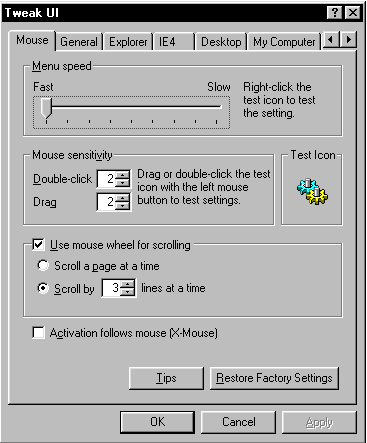
I highly recommend that you set the Menu Speed to Fast. Try the setting on the Test Icon and you'll see that setting this slower will only waste time.
Under Mouse Sensitivity, adjusting Double-click will let your clicks be closer or farther apart to count as a double click. The number indicates the number of pixels apart your clicks must be. You really need to test this setting to get an idea of what I'm talking about. I set this low, but someone who has a hard time holding the mouse steady might want to set it higher.
For Drag, you may want to set it a bit higher if your double click is high. This option sets the amount of pixels that an item must be dragged before the system recognizes it as a drag. Compare 1 and 32 if you don't understand. Keep in mind that if you set the drag low, you may accidently drag icons from time to time.
If the box isn't checked, you probably want to enable the "Use mouse wheel for scrolling" option This is extremely handy with almost any programs; especially while using the Internet. I set the scroll to 3 lines at a time. If you find that this is not very efficient (e.g. you end up moving the wheel a lot more than you think you should), set it to 5 or a little higher. Oh, and if you don't have a mouse with a wheel yet, make sure to buy one! Once you have a wheel, you will always be grateful because it does save time and effort, and can even be used for games.
"Activation follows mouse (X-Mouse)" is definitely a preference option. I personally loathe this, but some people find it's very handy. This option makes Windows automatically select whatever window/program your mouse is over without clicking. For example: you might have Internet Explorer and Notepad open. By moving your mouse over to Internet Explorer, it will automatically be selected. Once you're done here, click OK and you can move on to more advanced tweaks.
Next Page